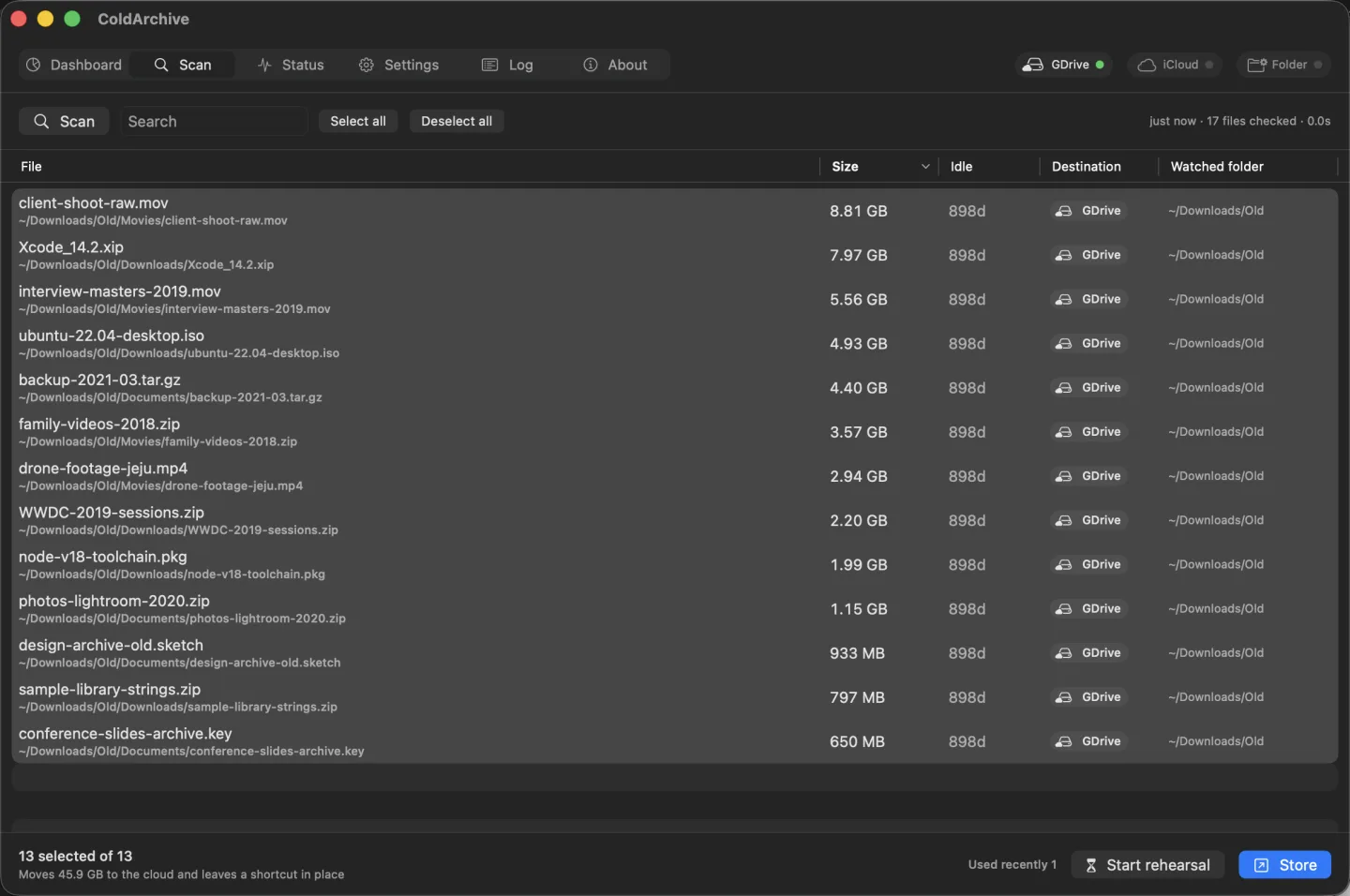
What you use stays on the Mac. What you don't quietly moves to your cloud or an external drive. Nothing looks different — you just have room again.
“1TB MacBook and it's basically full. I want to move old stuff to an external drive — is there an easy way?”
— A real question from a Mac user. Every answer was “move them yourself.”
Too scared to delete, too messy to move. And six months later you have no idea where anything went.
Don't delete anything. Move it, but leave the spot where it was.
Same names, same places. The three with frost on them went into the freezer — meeting-notes.pdf, used recently, was left alone.
Just tell me what a folder is for — I'll fill in the days and megabytes. Folders you'd rather I never touch get “Keep on Mac.”
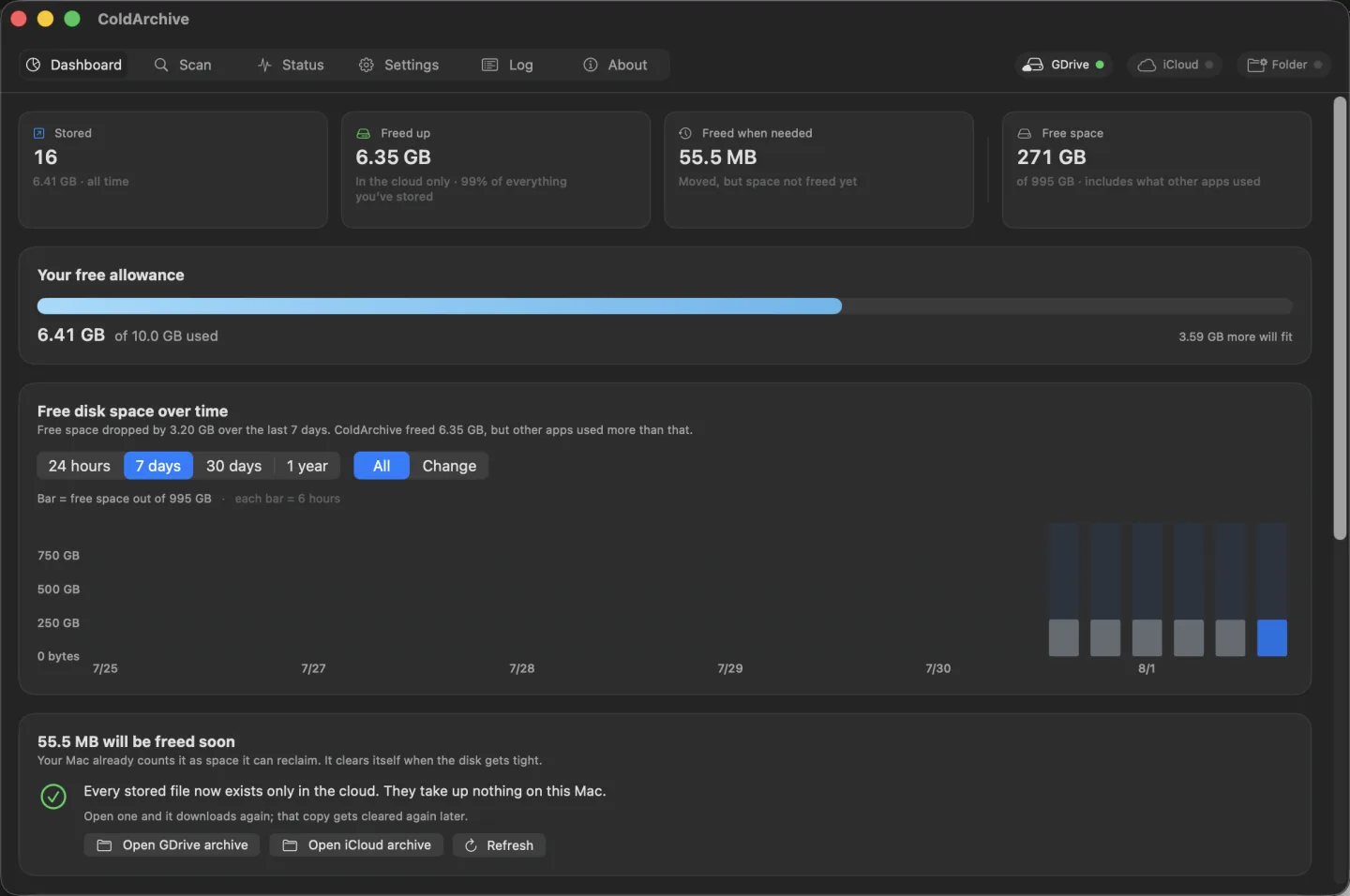
No mockups. The app, running.
Start with whatever you already have. Both work — the only difference is when the space shows up.
A copy lingers for a while, but macOS already counts it as “space I can take back,” and takes it back when things get tight.
The file physically leaves your Mac. The space is back the moment it moves.
On an external drive or NAS you get exactly the iPhone Photos experience — space back the second a file moves.
The penguin lives in your menu bar, and the ice he's standing on is your free space. A percentage doesn't register out of the corner of your eye. Cracking ice does.
Plenty
Getting thin
TightIdle CPU, easy waddle. Busy CPU, quick little steps. How hard your Mac is working reads at a glance, no numbers needed.
The backdrop follows the clock. Stars and a moon before dawn, bright at noon, dark again by evening. It reads the calendar, not the internet.
By default it's just the season, so no internet is involved. Type in a city and it becomes real weather — fetched by a tiny helper that can't see your files, never by the app itself.
All three are real frames rendered by the app. Only the playback speed was tuned for the page.
There's a restore script sitting in the archive folder. Double-click it and everything goes home — no app, no internet, not even the Mac you started on.
Turn on “rehearsal” and it observes without moving anything. Touch a file even once and it drops off the list.
Files inside git repos, hidden files, and any folder you exclude were never candidates to begin with.
Which is why you can leave it running overnight. Check it in the morning.
This app doesn't have permission to reach the internet at all. Don't take my word for it — here's how to check.
codesign -d --entitlements - /Applications/ColdArchive.app
You'll see file permissions and the sandbox. No network entitlement. Uploading is handled by the Google Drive or iCloud app you already run. The optional weather backdrop is fetched by a small separate helper, and that helper can't see your files.
Same goes for this page. Not one external script.
The stuff I think it's only fair to tell you before you buy.
iCloud Photos and “Optimize Mac Storage” have worked this way for a long time. ColdArchive safely extends it to every folder and every cloud.
Stored files already have a copy in the cloud (or on your drive). If Time Machine backs that up again, your backup disk fills twice as fast — and worse, the backup re-downloads everything from the cloud to read it, filling the space you just freed.
So the archive is excluded from Time Machine automatically. You don't have to do anything.
If there's a folder you do want Time Machine to keep, give it “Keep on Mac.” Even when the parent folder is being watched, that one is never entered.
macOS 15 or later · Apple Silicon and Intel.
Yours for life · one payment · no account
Priced 20% below the regular price to mark the launch.
Buy